Desktop Trading App
Binomo App Download for PC
Use the links below to access the official apps and learn about trading on a PC, both with and without downloading applications.
Binomo is a trading platform where users can trade digital options on various financial instruments. The PC web app offers advantages like improved chart visibility, precise control, and smoother performance for extended trading sessions.
When using Binomo on a desktop computer, traders benefit from:
- Larger screen size for detailed chart analysis
- More comfortable navigation with mouse and keyboard
- Ability to view multiple indicators simultaneously
- Faster execution speed for time-sensitive trades
- Better multitasking capabilities with other trading tools
This guide explores all available methods for accessing Binomo on your Windows computer, from browser-based solutions to emulator options.
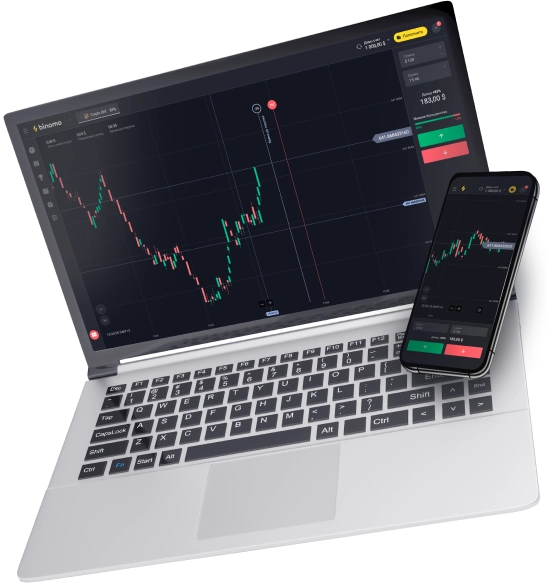
Accessing Binomo on PC Through Web Platform
The most straightforward method to use Binomo on your PC doesn’t require any downloads at all. The web-based platform provides full functionality through your standard browser:
- Open your preferred web browser (Chrome, Firefox, Edge)
- Navigate to the official Binomo website
- Sign in with your credentials or register a new account
- Access all trading features directly from your browser window
This approach ensures you always have the latest version of the platform without manual updates. The web interface is fully optimized for desktop use, featuring all analysis tools and trading functions available to PC users.
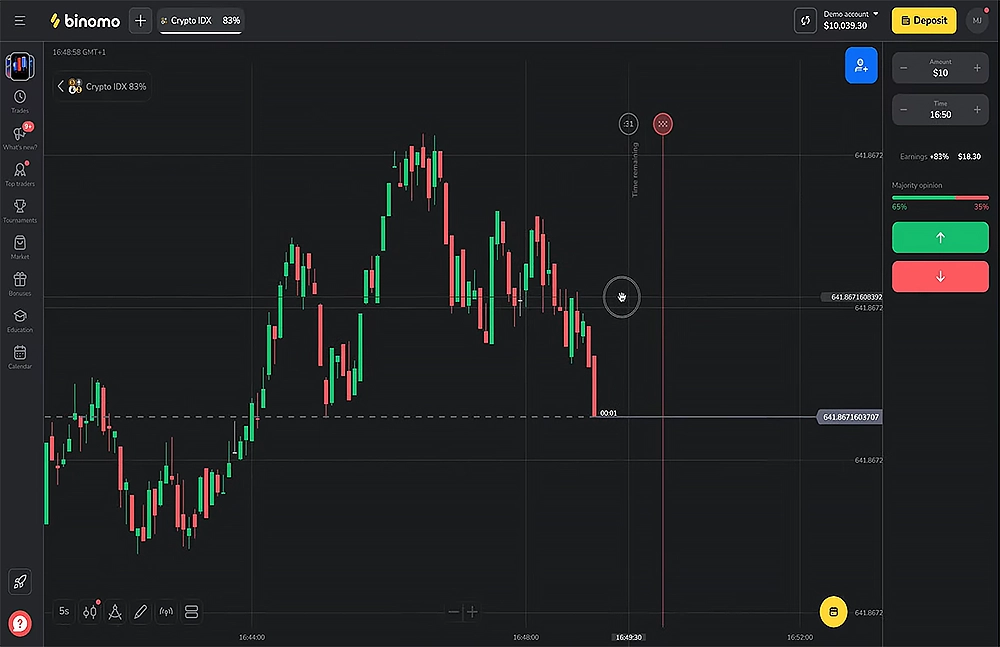
Creating a Desktop Shortcut
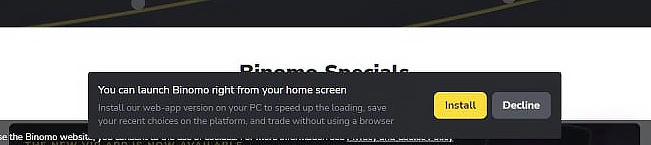
For more convenient access that mimics a native application experience:
- Visit the Binomo website in your browser
- Scroll to the bottom of the start page where Binomo offers to save the web app
- Follow the prompt to create a desktop shortcut
Alternatively, use your browser’s built-in features:
- In Chrome: Click menu (three dots) → More tools → Create shortcut
- In Edge: Click menu (three dots) → Apps → Install this site as an app
- In Firefox: Click menu (three lines) → More tools → Create shortcut
This method launches Binomo in a dedicated window without browser navigation elements, providing a cleaner interface similar to a native application.
Minimum System Requirements for Running Binomo Web on PC
| Component | Specification |
|---|---|
| Operating System | Windows 7, 8.1, 10, 11 (32-bit or 64-bit) |
| Graphics Card | Integrated graphics (Intel HD Graphics 4000+) |
| Processor | Dual-core 1.8 GHz or equivalent |
| Memory | 4GB RAM |
| Storage | 500MB available space |
| Internet | Stable connection (2 Mbps minimum) |
- Processor and Graphics Card: Binomo is a web application for trading and does not require heavy graphical processing or complex computations. Modern integrated graphics solutions and processors are more than sufficient for such tasks.
- RAM: 4GB is enough to run a browser with multiple tabs. The recommended 8GB ensures stability even when working with other applications simultaneously.
- Internet: Network speed requirements are minimal and sufficient for stable access to the web application.
- Storage: 500MB to 1GB is adequate for storing temporary files and cache.
These system requirements meet the standards for web applications and ensure a smooth experience with Binomo even on budget devices.
Using Android Emulators to Run Binomo on PC
For traders who prefer the mobile app experience on a larger screen, Android emulators offer an effective solution. These programs create a virtual Android environment on your Windows PC, allowing you to install and run mobile apps.
BlueStacks Method
BlueStacks is among the most popular Android emulators with excellent performance for trading applications:
- Download the BlueStacks installer from its official website
- Run the installer and follow on-screen instructions
- Launch BlueStacks after installation completes
- Sign in with your Google account
- Open Google Play Store from within BlueStacks
- Search for “Binomo” in the search bar
- Click “Install” and wait for the download to complete
- Once installed, open Binomo from your BlueStacks home screen
Log in with your existing Binomo account or create a new one
Alternative Emulator Options
Several other emulators work effectively for running Binomo on PC:
| Emulator | Key Features | Best For |
|---|---|---|
| MEmu | Multiple instances, high performance | Power users, multi-account monitoring |
| LDPlayer | Lower resource usage, stable operation | Older computers, basic trading needs |
| GameLoop | Simple interface, automatic optimization | Beginners, straightforward setup |
| Nox Player | Advanced customization options | Technical users, specialized configurations |
Installing Binomo Using APK Files
In regions where the Binomo app isn’t available through Google Play Store, or for users seeking the latest version, using an APK file provides an alternative installation method:
- Download your preferred Android emulator and install it
- Visit the official Binomo website
- Locate the APK download section (often available via QR code)
- Download the official Binomo
- APK file to your computer
- Launch your emulator
- Drag and drop the APK file onto the emulator window, or use the emulator’s “Install APK” function
- Wait for installation to complete
- Open Binomo from your emulator’s app list
Security warning: Only download APK files from the official Binomo website or other verified sources. Unofficial APKs may contain malicious code that could compromise your trading account or personal information.
Mobile Trading Options with Binomo
While this guide focuses on desktop solutions, Binomo offers mobile applications that complement PC trading. These apps are ideal for monitoring positions or making quick trades when away from your computer.
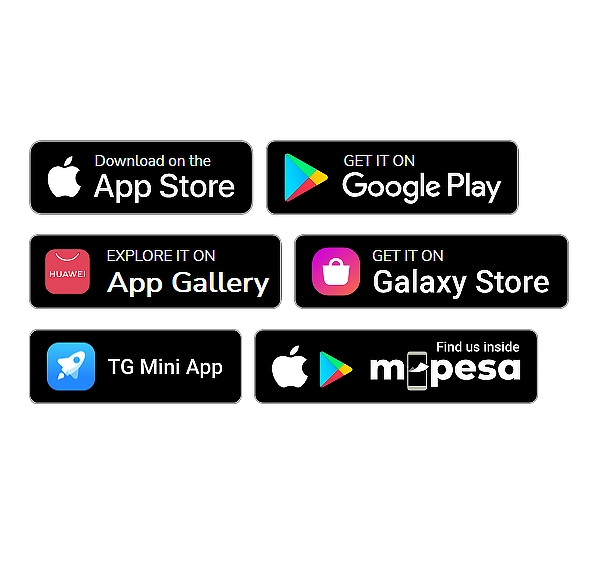
The mobile app is available for:
- Android devices: Requires Android 5.0+, approximately 30MB storage space
- iOS devices: Compatible with iPhone and iPad running iOS 11.0+
All essential trading features are included in the mobile version, including charts, indicators, account management, and educational resources.
Desktop vs. Mobile Trading Experience
When deciding which platform best suits your trading style, consider these comparative factors:
| Feature | Desktop Experience | Mobile Experience |
|---|---|---|
| Screen Real Estate | Extensive chart view with multiple indicators visible | Limited display area, fewer visible indicators |
| Input Precision | Exact mouse positioning for entry/exit points | Touch controls with potential accuracy limitations |
| Multitasking | Easy reference to external resources alongside platform | Limited split-screen capabilities |
| Analysis Depth | Comfortable for extended technical analysis | Better suited for quick checks and basic analysis |
| Notifications | Browser or emulator alerts | Direct push notifications |
| Accessibility | Available only at your computer | Trade from anywhere with internet connection |
| Performance | Generally faster with desktop processing power | Depends on mobile device specifications |
Many traders use both platforms complementarily — performing detailed analysis on PC and then executing or monitoring trades on mobile when away from their desk.
Getting Started After Download
Once you’ve set up Binomo on your PC through any of the methods described, follow these steps to begin trading:
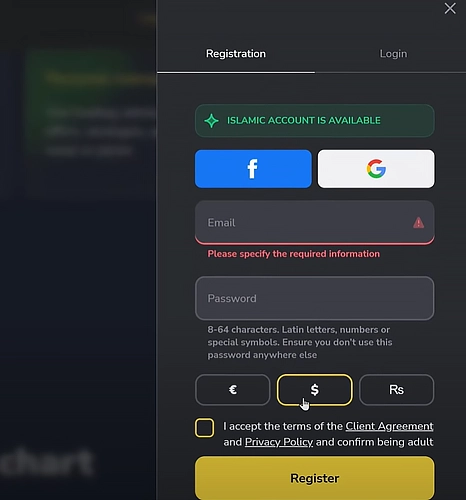
To create an account on Binomo, new users can register using their email, Google, or Facebook accounts. During registration, it’s important to select your preferred account currency carefully, as it cannot be changed later. After accepting the terms and conditions, you’ll gain access to the platform and can begin exploring its features.
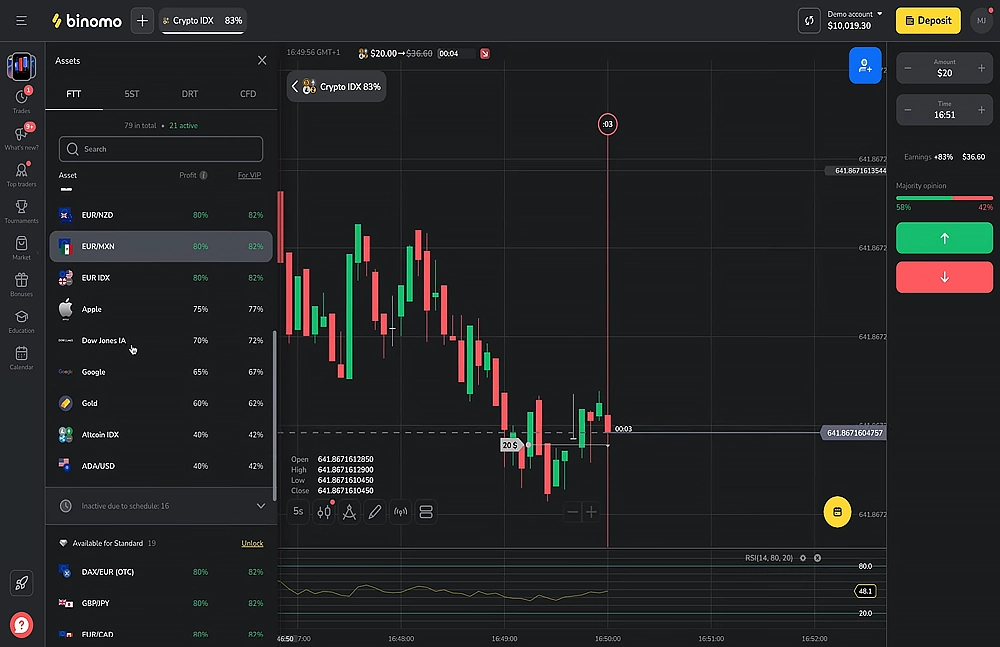
Binomo provides a demo account with $10,000 in virtual funds, allowing users to practice trading without any financial risk. This is an excellent way to familiarize yourself with the platform’s interface, learn how to read charts, use trading indicators, and explore various strategies. The platform also offers a range of educational resources, including guides on trading techniques and risk management, to help you build your skills.
When you’re ready to start live trading, you can make an initial deposit starting from as little as $10.
Binomo supports various payment methods based on your region, making it easy to fund your account. Begin trading by selecting an asset, choosing a trade amount, and setting an expiration time. As you gain experience, you can monitor and manage your open positions, gradually improving your trading approach.
Accessing Binomo on your PC offers significant advantages for serious traders, particularly those who perform detailed technical analysis or engage in extended trading sessions. Whether you choose the straightforward web platform approach or utilize an emulator for the mobile app experience, Binomo download for PC opens up enhanced trading capabilities with the comfort and precision of desktop computing.
The web platform provides immediate access with no download required, while emulators offer the familiar mobile interface on a larger screen. Both methods give you access to Binomo’s complete feature set, including charts, indicators, and account management functions.
Frequently Asked Questions
Is there an official standalone Binomo app for Windows?
Currently, Binomo does not offer a dedicated Windows desktop application. Users can access the platform through the web browser interface or by running the mobile app via an Android emulator.
Which method provides the best performance for trading on PC?
The direct web browser method typically offers the best performance with minimal resource usage. Emulator methods require more system resources but provide the familiar mobile interface on a larger screen.
Can I use my Binomo account across multiple devices?
Yes, your Binomo login credentials work across all platforms. You can seamlessly switch between PC and mobile devices while maintaining access to your trading history, funds, and settings.
How much disk space is required for the emulator method?
Most emulators require 2-3GB of disk space for installation, plus approximately 30MB for the Binomo app itself. Ensure you have at least 4GB of free space for comfortable operation.
Is it safe to trade on Binomo through an emulator?
Yes, when using official emulators and the genuine Binomo app, your trading experience remains secure. However, always download emulators from their official websites and the Binomo app from authorized sources.
Why can't I find Binomo in Google Play Store when using an emulator?
In some regions, Binomo may not be available on Google Play Store due to local regulations. In these cases, using the APK file directly is the recommended installation method.
Will Binomo release a dedicated Windows application in the future?
While Binomo continues to develop its platform, there has been no official announcement regarding a dedicated Windows application. The current web platform options provide comprehensive functionality for PC users.
Sign Up and Get a Bonus
Join the trading platform and receive a welcome bonus on your first deposit!
Risk Warning: Trading in financial markets and CFDs with leverage carries a high risk of losing part or all of your invested capital. Ensure you understand the risks involved and assess your level of preparation before engaging in high-risk trading. Please make sure trading complies with the regulations in your region before proceeding.